There are many attributes connected to each data mapping element. This section describes the components for creating a new entry.
Create new element
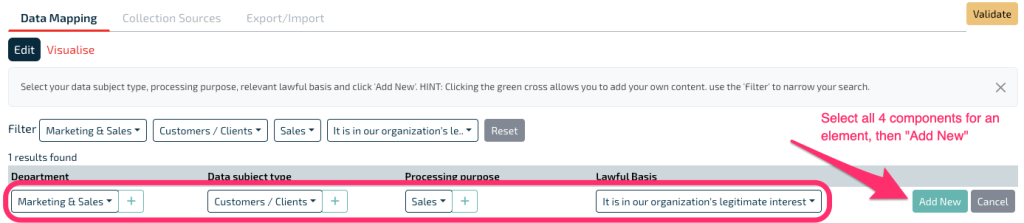
From the Creation Section, choose an existing item from the dropdown; or click the green plus sign (+) to add and use a new picklist item. The combination of Department (#1) + Data Subject Type (#2) + Processing Purpose (#3) must be unique to your organization. Choose the most relevant Lawful Basis (#4) for this element. When your selections are complete, click “Add New” (#5), or choose “Cancel” to clear your choices

For our new element, we choose each component, then click “Add New”.
After “Add New”, a popup with multiple tabs will step you through adding the attributes for this element.
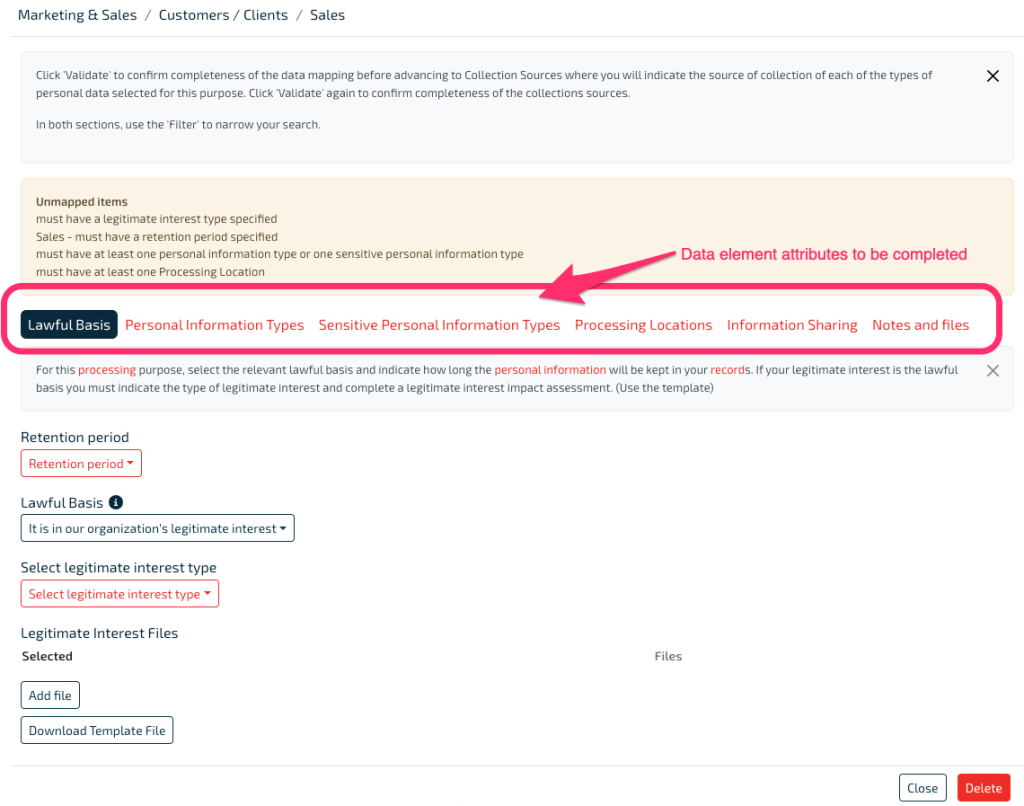
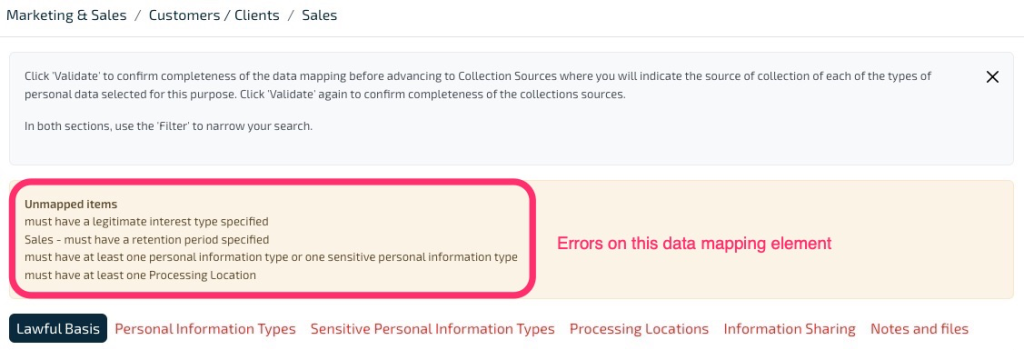
The popup will also list errors that need to be resolved for this element. When adding a new item, you do not need to address the errors. The errors will resolve as you work your way through the tabs. Errors are highlighted in yellow on the tabbed popup.
Lawful Basis
Complete the fields in red: “Retention period” and “Select legitimate interest type”. Modify “Lawful Basis” (if you need to change it), and manage files if applicable.
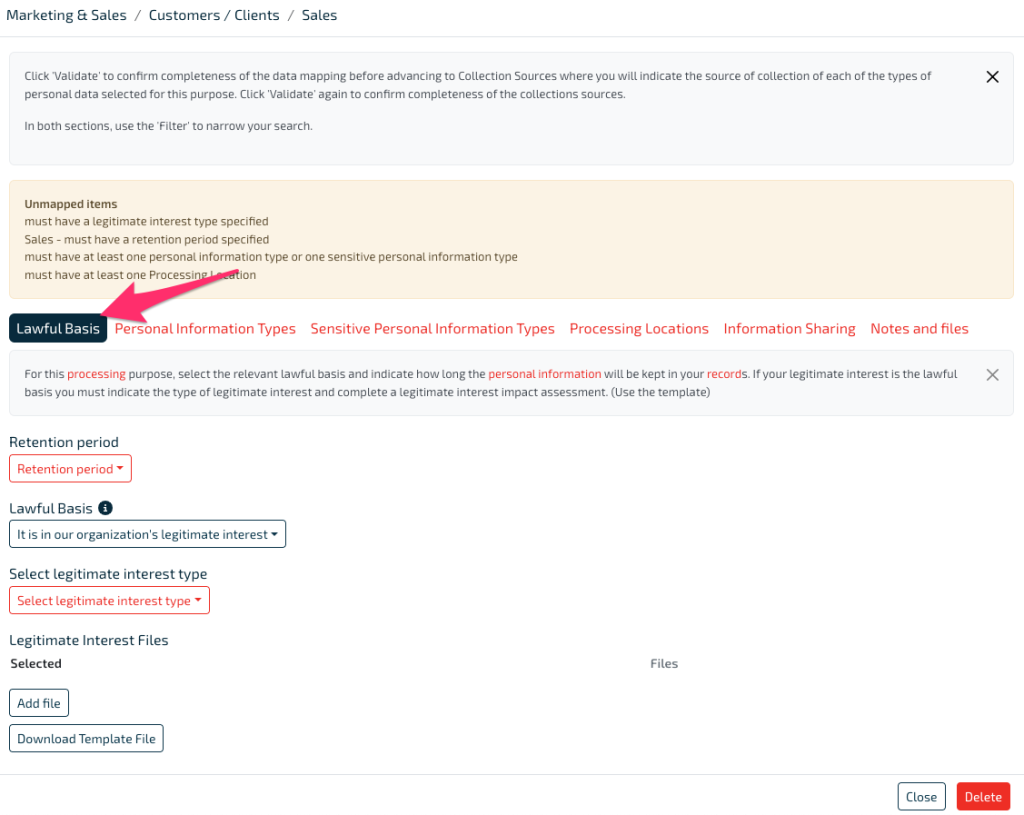
From this screen, there is not an option to do a Save. Your input is saved automatically.
To enter the next attributes, click the tab to the right of “Lawful Basis”, which is “Personal Information Types”.
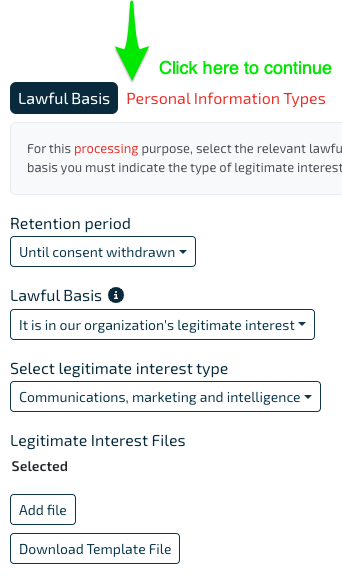
To return to this entry later, click “Close”.
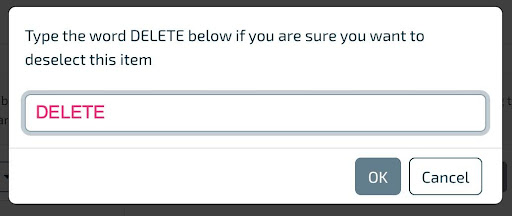
To delete this element, click “Delete”. If you choose Delete, you will receive the confirmation popup.
Personal Information Types
Open the dropdown by the word “Select” and choose the personal information types that you collect for this element.
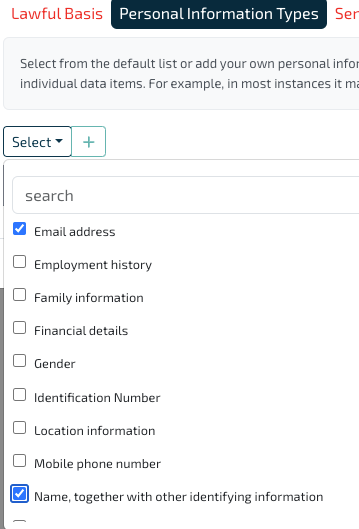
When you are done, click on the page outside of the dropdown and your selections will appear.
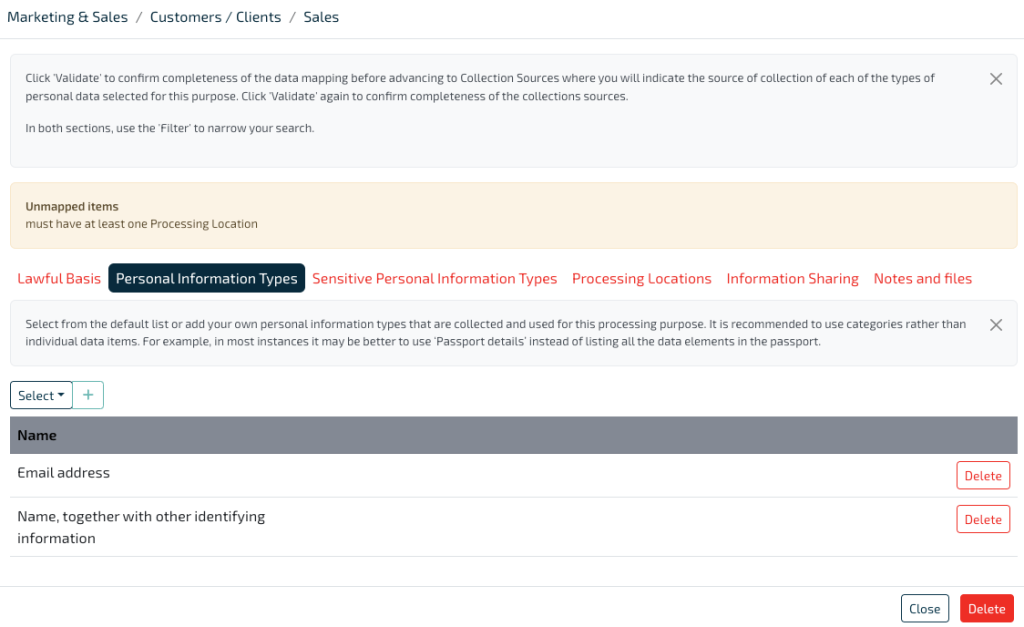
Notice that the errors in “Unmapped Items” and highlighted in yellow have already been reduced.
From this screen, there is not an option to do a Save. Your input is saved automatically.
To enter the next attributes, click the tab to the right of “Personal Information Types”, which is “Sensitive Personal Information Types”
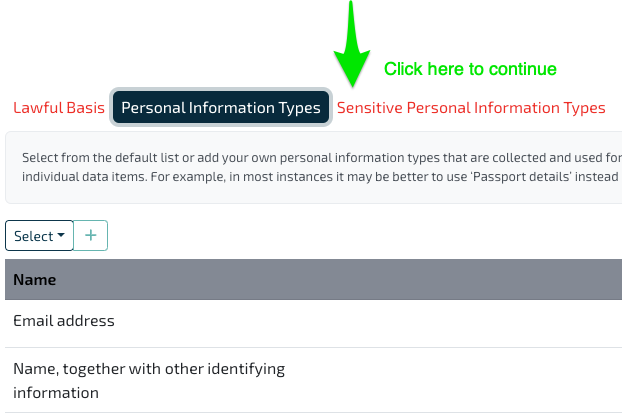
To return to this entry later, click “Close”
To delete this element, click “Delete”. If you choose Delete, you will receive the confirmation popup
Sensitive Personal Information Types
If you collect Sensitive personal information for this element, open the dropdown by the word “Select” and choose the personal information types that you collect for this element. A selection is not required if you do not collect any sensitive information.
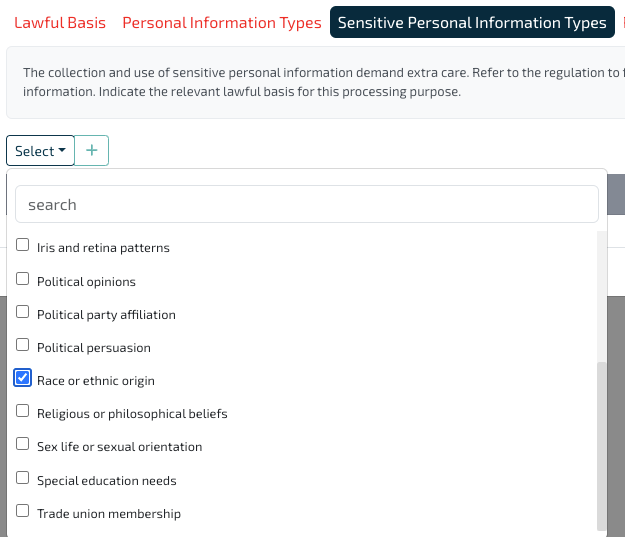
When you are done, click on the page outside of the dropdown and your selections will appear. You will also need to select a Lawful Basis for collecting this information.
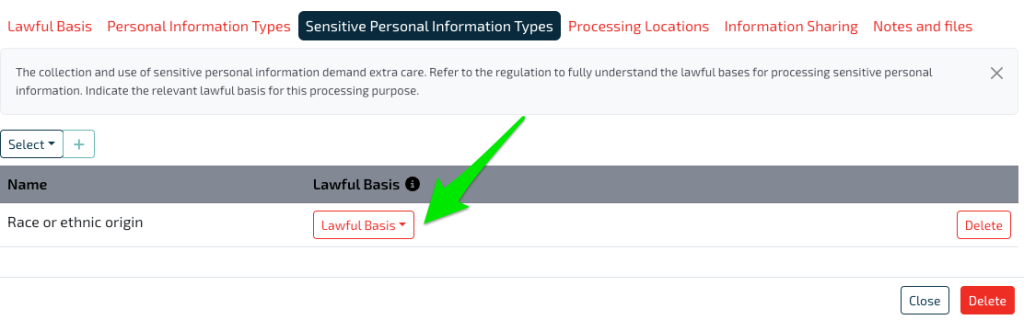
After choosing a Lawful Basis for each type of Sensitive Personal Information, continue with this element.
From this screen, there is not an option to do a Save. Your input is saved automatically.
To enter the next attributes, click the tab to the right of “Sensitive Personal Information Types”, which is “Processing Locations”
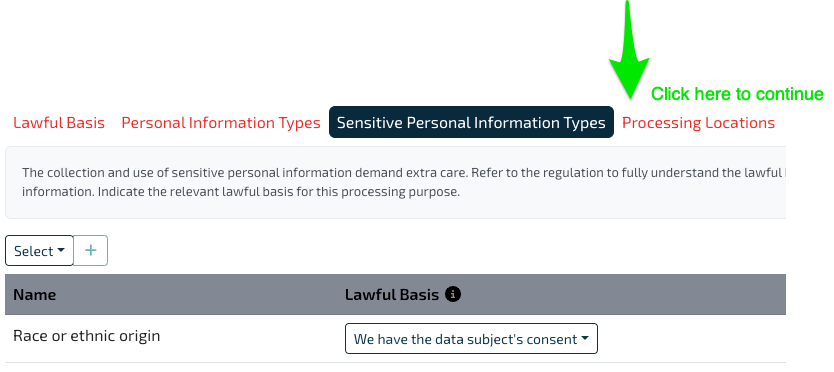
To return to this entry later, click “Close”
To delete this element, click “Delete”. If you choose Delete, you will receive the confirmation popup
Processing Locations
In the Processing Locations tab, you will start working in the “Locations” tab. Each data mapping element requires at least one Processing Location; this can be an internal/on-prem location or a cloud location. Open the dropdown by the word “Select” and choose the Processing Location for this element.
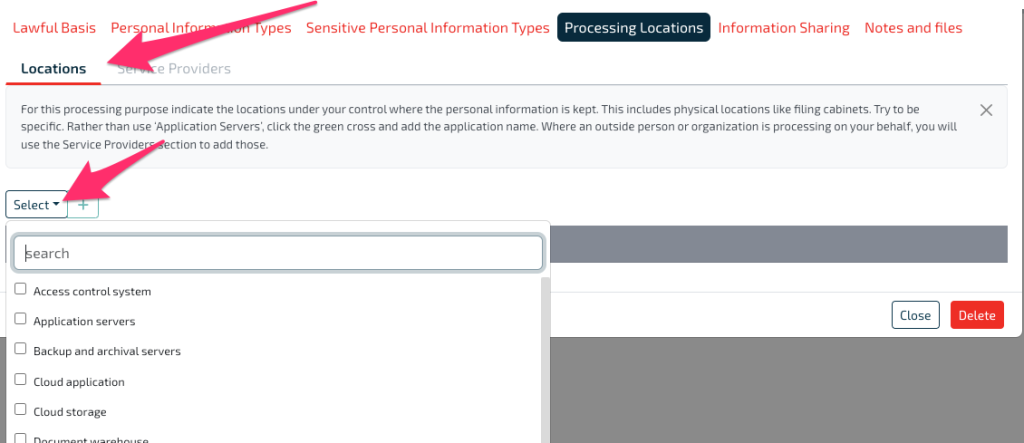
NOTE: We do not recommend using the generic Processing Location names of “Application servers”, “Cloud application” or “Cloud storage”. Instead we recommend using names that have meaning to your organization and which make it easy to identify. For example, for your internal systems instead of “Application servers”, create entries such as HCM or Accounting Server. Instead of “Cloud application”, create entries for SaaS applications such as CRM, Email Service, eSignature, etc. Being specific aids your team in locating where your application resides and/or what it is called, for functions such as carrying out data subject requests and privacy impact assessments.
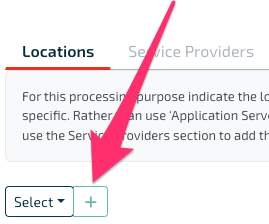
In this example, we will create a meaningful name and not use the dropdown – where the company uses Salesforce as its CRM and everyone in the company recognizes it as “Salesforce”. Choose the green plus sign to create a new entry.
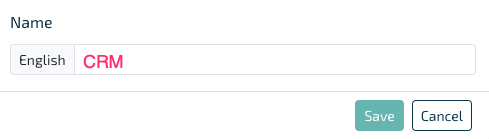
On the new entry popup, enter the name and Save.
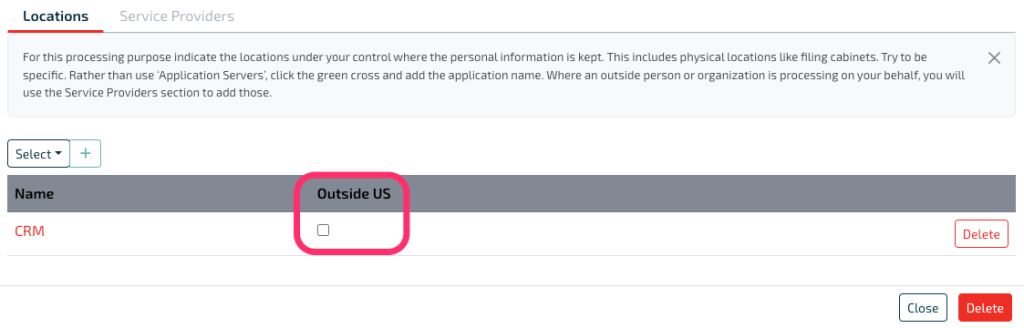
The new entry now appears in your list of Processing Locations. If the processing is outside of the US, check that box. If you manage the data in more than one location, continue to add multiple Processing Locations for this element.
When you have finished entering Locations, click on the Service Provider tab within Processing Locations
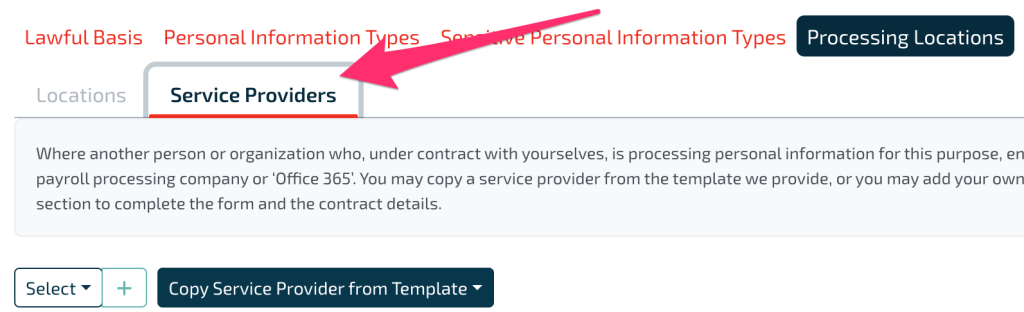
If you use a third party, they are known in US law as a Service Provider (also called Processor). Service Providers are the companies you contract with to process your personal data on their service/app/server following your data processing instructions. Within DPDx you will maintain an inventory of Service Providers with vendor and contract information. This inventory is maintained in the Service Provider section of DPDx, which can be accessed from a homepage tile or the sidebar.
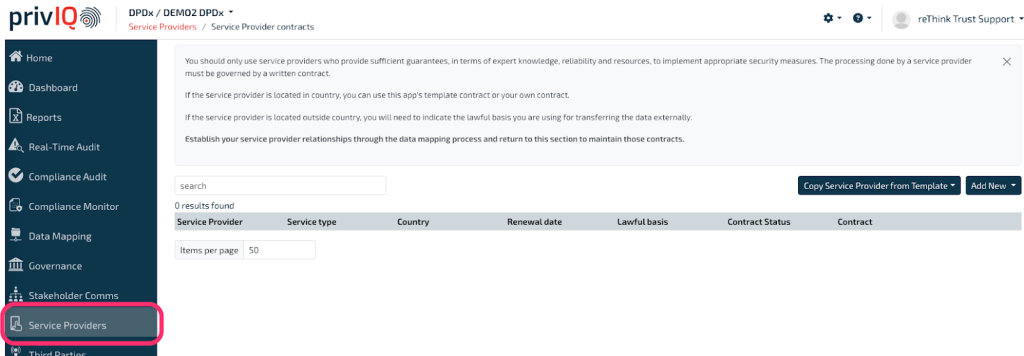
The recommended method is to create Service Provider entries while entering your data mapping details. DPDx provides templates of many common Service Providers which you can use to build your inventory. Note that the name you use for an entry is published in notices created by DPDx, so decide whether you want to show the name of the provider or just the category/type of service. For example, there might be commercial sensitivities around having the names of companies on your privacy notices. Check with your legal counsel if you are unsure.
If you have previously created Service Provider entries, open the dropdown by the word “Select” and choose the provider for this element.
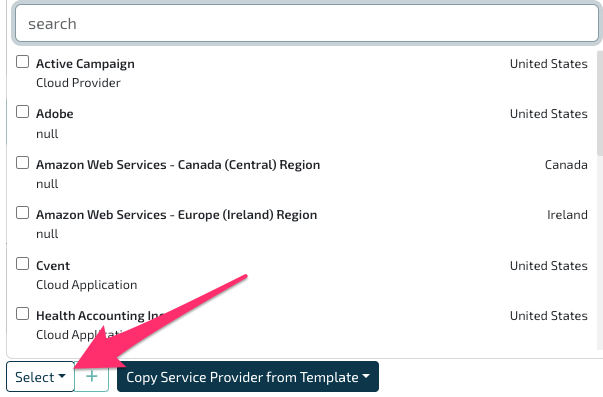
In this example we do not have any providers yet, so we will create an entry from the DPDx templates. After you choose the “Service Providers” tab from within Processing Locations, open the dropdown for “Copy Service Provider from Template”.
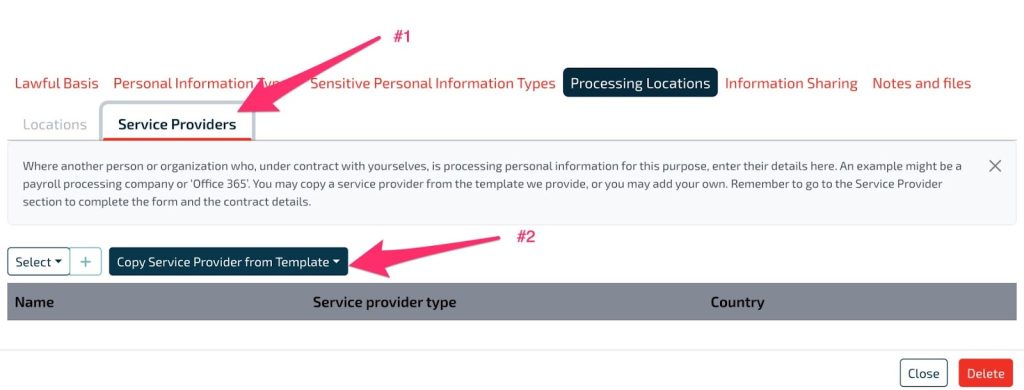
On the new popup search for “Salesforce”, select the appropriate entry, then choose “Copy Service Provider from Template”.
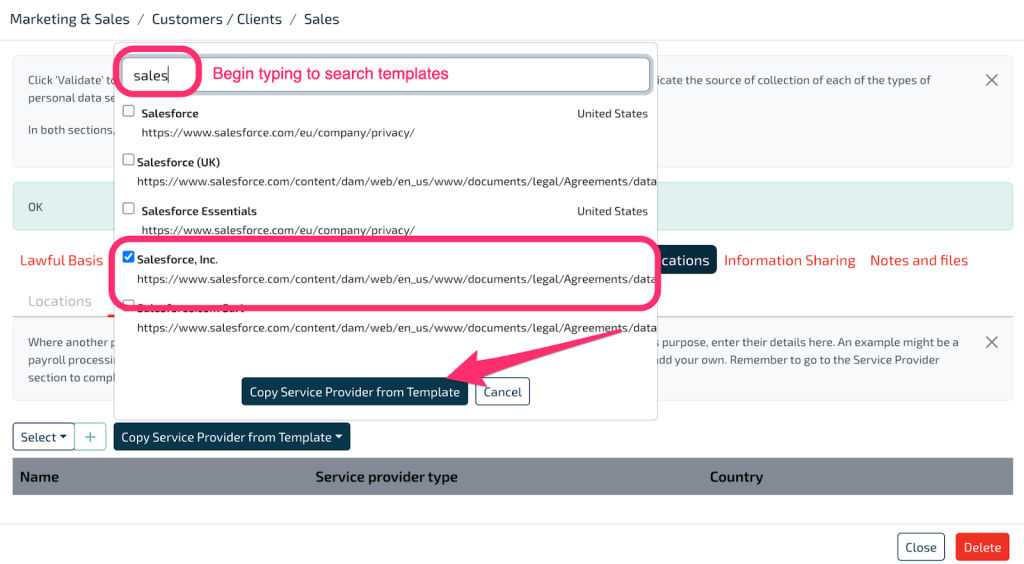
The smaller popup closes and this new Service Provider appears in the provider listing.
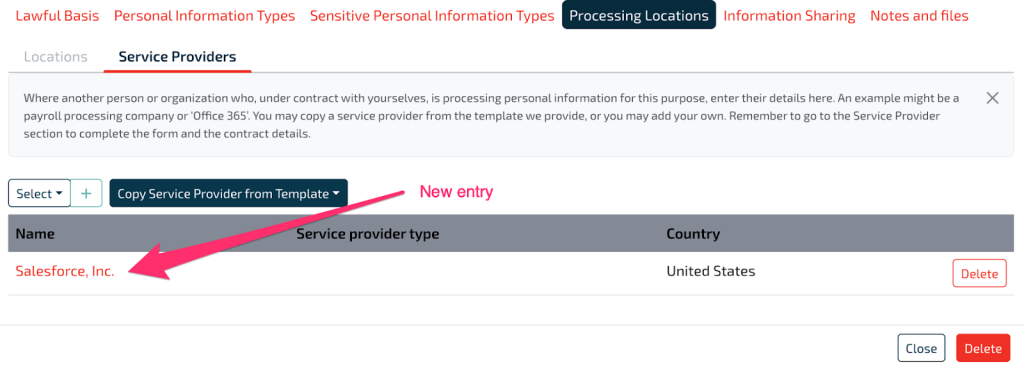
If you have multiple Service Providers, continue to add the providers for this element.
Later you can return to the Service Providers section to add and update details on each provider and your contract with them.
From this screen, there is not an option to do a Save. Your input is saved automatically.
To enter the next attributes, click the tab to the right of “Processing Locations”, which is “Information Sharing”.
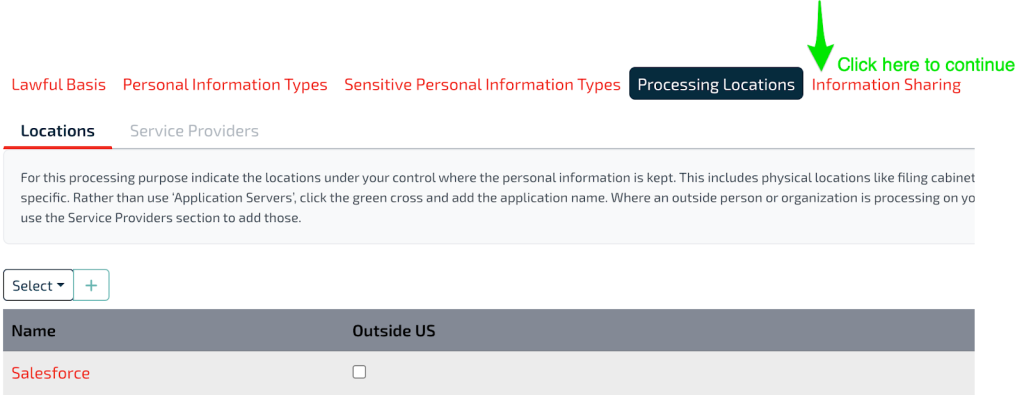
To return to this entry later, click “Close”
To delete this element, click “Delete”. If you choose Delete, you will receive the confirmation popup
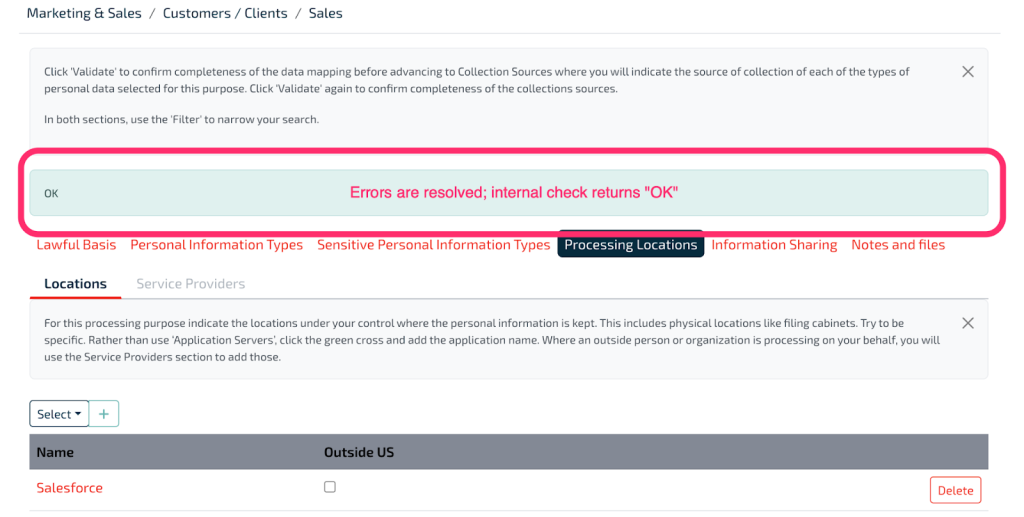
After completing Processing Locations, notice all errors have cleared up. The internal check returns “OK”, and the highlight color is green instead of yellow.
Information Sharing
Information Sharing is completed when you share data with a Third Party who acts as a Data Controller. If you do not share information this way, do not add any information here.
Within DPDx you will maintain an inventory of these parties with vendor and contract information. This listing is in the Third Parties section of DPDx, accessed from a homepage tile or the sidebar.
If you have previously created Third Party entries, open the dropdown by the word “Select” and choose the provider for this element.
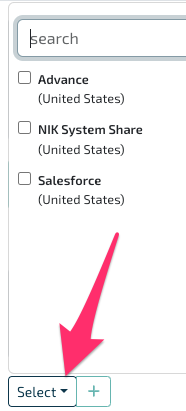
In this example, we will create a new entry and not use the dropdown. Choose the green plus sign to create a new entry.

On the new entry popup, enter the requested information and Save.
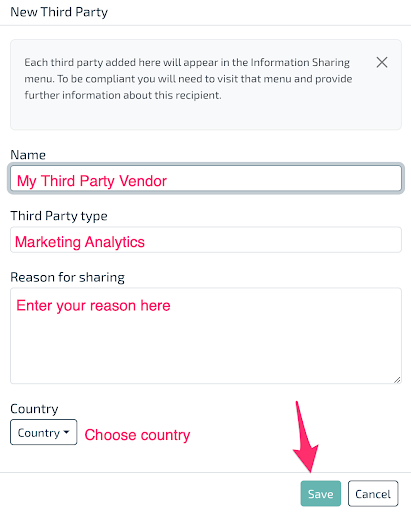
The new entry now appears in your list of Third Parties. If you share data with more than one vendor, continue to add parties for this element.
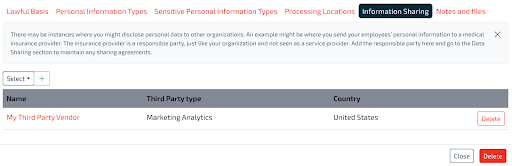
Later you can return to the Third Parties section to add and update details on each vendor and your contract with them.
From this screen, there is not an option to do a Save. Your input is saved automatically.
To enter the next attributes, click the tab to the right of “Information Sharing”, which is “Notes and Files”.
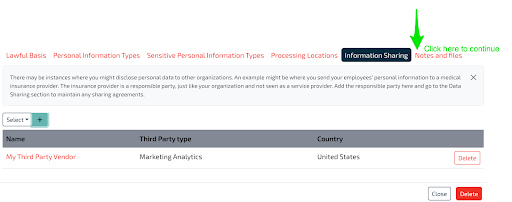
To return to this entry later, click “Close”.
To delete this element, click “Delete”. If you choose Delete, you will receive the confirmation popup.
Notes and Files
If you have notes and files that are relevant to this element, add them here.
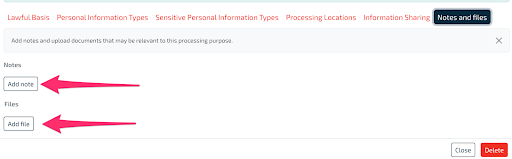
From this screen, there is not an option to do a Save. Your input is saved automatically.
Notes and Files is the last section of entry for this element. Click “Close” to finish the entry.
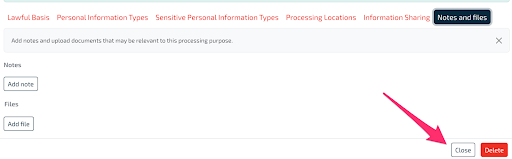
To delete this element, click “Delete”. If you choose Delete, you will receive the confirmation popup.
After you close the popup, you return to the main data mapping homepage and the new element is listed.
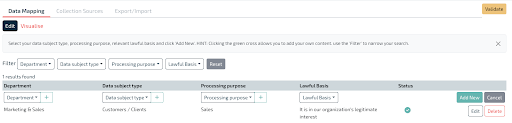
Status check
A status icon is shown on each data mapping entity. When the mapping is complete for all of the tabs on the popup described so far, there is a green check.
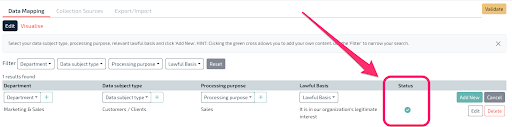
If you have an incomplete entity, the Status shows a yellow warning icon.
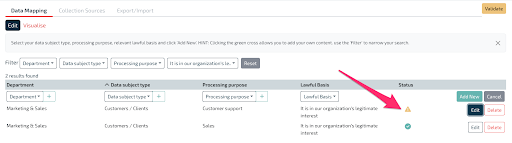
Choose “Edit” for the entry with a warning. You will notice that there are error messages above the item. The missing item is also highlighted in red on the related tab.
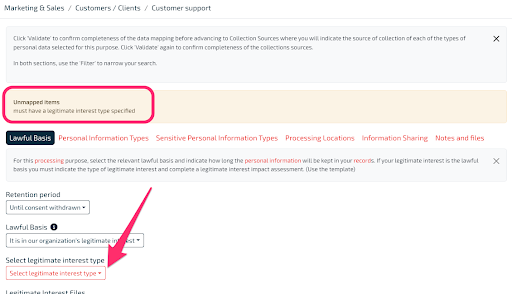
To clear up this warning, choose a legitimate interest type and Close that item. You might need to refresh your browser page to see the change to the Status icon.
Collection Sources
The next step for a new element is to detail the sources where you collect each type of personal information that was specified when you created the element. Choose the “Collection Sources” tab from the Data Mapping home page.
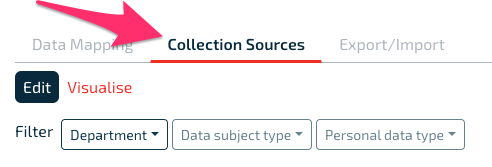
Collection sources are identified for each unique combination of “Department + Data subject type + Personal Information Type”. Recall that “Department + Data subject type + Processing Purpose” creates a unique data mapping element. Collection sources are not unique among processing purposes. Thus they are defined outside of the data mapping element section because one collection source ite